Showing posts with label iPhone tips. Show all posts

Monday, December 12, 2016

How to Remove iCloud Account from iPhone/iPad


Before removing iCloud account from iPhone/iPad, you need to keep in mind that the removel of iCloud account can cause a variety of complications and errors, ranging from improper or missing iMessage delivery, loss of data syncing, inability to retrieve apps that are associated with an Apple ID and App Store account, the removal of expected iCloud backups, and even loss of files and iCloud data. Therefore, you'd better backup your iPhone with iTunes before removing iCloud account from iPhone/iPad.

Method 1. Remove iCloud Account from iPhone/iPad Directly


Step 1. Open the Settings app and go to “iCloud”. Then scroll down under all the settings to find “Delete Account” (or “Sign Out”) and tap on that. Confirm the removal of the iCloud account from the device by tapping on “Delete” or “Sign Out”.

Step 2.  Two options are available: “Keep on My iPhone” and “Delete from My iPhone”. If you wish to keep those data on your iPhone, tap on “Keep on My iPhone”. If not, tap on “Delete from My iPhone”. Note that this will only delete data from your iPhone and not the iCloud account.

Step 3. Sometimes, it requires iCloud password. And if you’ve forgotten the passcode or you have no password, the iCloud account can’t be removed.

Method 2. Remove iCloud Account from iPhone without Password


In case that you forget your iCloud password but you still want to remove iCloud account from iPhone/iPad. You can follow the steps below to finish the task with ease.

Step 1. Open the Settings app and go to “iCloud”. Then  tap on it to open. When prompted for a password, enter any random number. Then Tap on “Done”.

Step 2. iCloud will tell you that the username and password you entered is incorrect. Click on “OK” and then “Cancel” to go back to main iCloud page. After that, tap on Account again but this time, remove the description and then tap on “Done”.

Step 3. You will be taken back to the main iCloud page without having to enter your password. You will also notice that the “Find my Phone” feature has been turned off automatically. Then scroll down and tap on Delete. You will be promoted to confirm the deletion which you can do by tapping on “Delete” again.

After removing iCloud account from iPhone/iPad, you can switch to a different iCloud account. Enter the new or different iCloud Account credentials and log in as usual by tapping “Sign In”. Then you can choose the iCloud settings to use with the new account ID.

Related Tip: If you have no idea about how to backup iPhone/iPad, you could go to Apple official site or visit the tutorial: How to Backup iPhone?

Tuesday, October 11, 2016

How to Fix iPhone Camera Not Working


"I don't know why my camera is not working, I am sure it is a software problem, it just shows a black page. All features are working but it doesn't show an image. It is not working on other apps, like Instagram, as well. The front camera is not working. I have tried to "Reset All Aetting" option but it is not working neither. I upload a photo which is the screenshot when I run camera How can I solve this problem?"

Taking beautiful photos with iPhone Camera is easy for us. But many people reported that their iPhone camera not working issue. Therefore, how to fix it? In this article, we will focus on showing you how to fix it when you find that your iPhone camera won't work?

1. Force the Camera App to Close

This is the easiest but useful way to fix iPhone camera not working issue. To force the camera app to close, tap on the Home button two times, and you’ll get the preview of the apps you have been used. What you need to do is to find the Camera app, and swipe up to close it. Go back to the Home screen, and launch the Camera app again.

2. Try The Third-party Camera App

There are many third party camera apps for iPhone that you can find in the App Store, such as VSCO, FoToRus, etc. After you download and install one of them on your iPhone, try to take some photos with it. If this app works fine, try again to use the iPhone default camera app. If it doesn't well, you may need to find other ways.

3. Restart Your iPhone

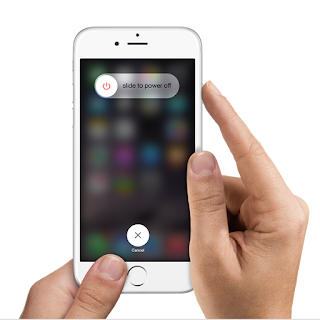
You can also restart your iPhone, and then launch the Camera app again. To turn off your phone, press and hold the sleep/wake button, then drag the slider to power off. Usually, when you do this, which is basically a restart, you turn it back on right away. Wait for a while, and then turn it back on.


4. Toggle Low Power Mode on or off. 

Some iPhone users have successfully dealt with camera problems by simply toggling the Low Power Mode feature on their device. After you toggle this feature on or off, reboot your iPhone and then open the Camera app. You can give it a try this time and see if it too does wonder to you as well.

5. Update IOS

The software bug could cause your iPhone camera is not working. To get rid this problem, updating the iOS to the latest version seems to be a great idea. You can check if there is an iOS update, go to "Settings > General > Software Updates". If there is a new Software update available, iPhone will download the update first. Once it’s done tap Install. When the update complete installation of itself, the device will automatically reboot and boot back up as normal when finished.

6. Reset All Settings

Reseting all settings on your iPhone may help you solving this issue. Launch Settings and select General. In General window, scroll down until you find "Reset", and tap on it. In the next window, choose "Reset All Settings". You will need to enter your passcode. Once it’s done, hit "Reset All Settings" in the popup window to confirm the action.

7. Erase All Content And Settings

This is effective, but should be taken as a last resort. You should back up the files on your device to iCloud or PC backup. Because this method will erase all your content and settings on your iPhone. You just need to go to "Settings > General > Reset" and then choose "Reset All Contents and Settings", then you will get all the files in your iPhone erase.

If you still can't solve the problem, you can also take it into an Apple Store and show the iPhone camera not working issue to them. If you're still under warranty, then you should get a replacement without any hassle.


Wednesday, September 28, 2016

Two Ways to Bypass iCloud Activation Lock on iPhone

If you find a lost iOS device and want to return it to the owner, you may need contact number of e-mail id of the owner. However, you cannot access these if the iPhone is locked. In the situation, you need to bypass iCloud activation lock on the iPhone.

1. Bypass iCloud Activation Lock Quickly

Step 1. Press the home button and tap on Wi-Fi Settings; now tap on “i” next to Wi-Fi symbol.
Step 2. From here, you need to follow below mentioned steps after removing the existing DNS.
  • If you are in USA/North America, type in 104.154.51.7
  • If you are in Europe, type in 104.155.28.90
  • If are in Asia, type in 104.155.220.58
  • In rest of the world, type in 78.109.17.60
(In this situation, there is a way to help the owner get his phone back. Bypass iCloud Lock in iOS 9 or iOS 8 for iPhone. This method works from iOS 9.2 to iOS 8.)
Step 3. After you have entered the right DNS, tap the “Back” button and click “Activation Help”.

When you have successfully completed the steps mentioned above, you will receive a message saying that “You have successfully connected to my Server”, which means that your device is activated and you now are able to most of the major functions of the device, including the settings. By tapping on Menu on the top right, you can access different functions like iCloud Locked User Chat, Social, Internet, Mail, Maps, YouTube, Video, Audio, Games and more.

2. Bypass iCloud Activation Lock Permanently

Further, if you want to bypass iCloud activation lock permanently, follow the steps below.
Step 1. Tap on the Menu, then go down to Applications and tap on it.
Step 2. Now tap on Crash. With this action, your iPhone will reboot.
Step 3. When the iOS device restart, choose “Language and Country”, press the “Home” button and tap on “More Wifi Settings”.
Step 4. Tap on “i.” and scroll down and tap on Menu under HTTP PROXY.
Step 5. Clear the address bar and tap on the Globe on the keyboard.
Step 6. Type in 15 to 30 characters randomly and type in “8888” in front of Port and tap on Back.
Step 7. Now again tap on Next.
Finally, keep sliding to unlock and click the language options for 2-3 minutes without giving your fingers any rest. This action will lead you to the home screen of iPhone.
Now, you can access 3 applications – Phone, Newsstand, and FaceTime. But every time you open one of the apps, you need to restart the iPhone.
If you need help to know how to bypass iCloud lock, there are also many paid unlocking services available online. You can choose the one that you trust and start to unlock the iCloud lock.

Wednesday, August 3, 2016

Forget Your iPhone Password? Here's How to Fix

Password is an effective and essential way for iPhone users to protect personal privacy. But if we don't use our iPhone for a long time, we may forget the password. It is the quite frustrating thing for us to forget all kinds of passwords, which means that we need to waste a lot of time to find them back or reset a new password. Especially, forgetting iPhone password will affect our daily life and works. Therefore, it is important for you to know how to reset iPhone password in quick ways. Here we introduce three ways to help you reset your iPhone password.

1. Using iTunes

Step 1. Connect your iPhone to the computer that your iPhone has trusted with a USB cable.
Step 2. Launch iTunes. If you’ve synced your iPhone with iTunes, then no “enter password” is required.
Step 3. iTunes will automatically sync your iPhone and create a backup file. If it doesn’t, you should sync your iTunes and create a backup file manually by in the Summary window.
Step 4. In the Summary window, you can see the option “Restore iPhone”. Click it and follow prompts to choose the latest iTunes backup to restore your iPhone.
Step 5. After the restoration process is complete, your passcode will be erased and all your data will be restored from your backup. You will now be able to access your iPhone without any passcode. And you can set your new password on iPhone.

Note: If you have synced your iPhone with iTunes before you forgot your iPhone password, you can reset your iPhone by using iTunes. Otherwise, you have to reset iPhone password with Recovery Mode mentioned below.

2.  Using iCloud Find My iPhone

Step 1. Go to icloud.com and log in with your Apple ID and password on your computer.
Step 2. Click Find My iPhone. Then click All Devices at the top of your browser window.
Step 3. Select your iPhone from all the devices listed. Click Erase iPhone to erase your iPhone along with its passcode.
Step 4. Use the Setup Assistant on your device to restore the most recent backup of your device.
Step 5. After the restoration process is finished, your passcode will be erased and all your data will be restored from your iCloud backup. You will now be able to access your iPhone without any passcode.

Note: Before you use the method, you should ensure that Find My iPhone app is ON.

3. Using Recovery Mode

If the above two methods don't work well, you can try resetting iPhone password by using Recovery Mode.
Step 1. Disconnect all cables from your iPhone and turn it off.
Step 2. Press and hold the Home button and connect your device to iTunes. If your iPhone does not turn on, please turn it on manually.
Step 3. Continue holding the Home button until you see the Connect to iTunes screen. iTunes will remind you that it has detected your iPhone in recovery mode.
Step 4. Click OK. The Summary tab in iTunes appears. Click “Restore iPhone” and restore your iPhone.

Note: Recovery Mode will erase all your data and passcode from your iPhone, resetting it to factory defaults. Thus, you’ll have a brand new iPhone without any personal data after you reset iPhone password with Recovery Mode. 

4. How to Create A New Password?

If you remember your current iPhone password and you just want to change  a new password, you can finish it with ease. 
Step 1. Go to Setting > Touch ID & Passcode (iOS 9/8/7) or Passcode Lock (iOS 6),


Step 2. Enter the current password and tap Change Passcode. Then enter the new passcode.

Conclusion:

Resetting iPhone password is actually not complicated if you follow the steps mentioned above. If you have synced your iPhone with iTunes before or if you have enabled your Find My iPhone on, you'd better try the first two methods. Since Recovery Mode will erase all your data from iPhone after resetting, please consider carefully whether you need to use this method to reset password on iPhone.


Tuesday, July 26, 2016

What You Can Do If Your iPhone Won't Turn On

It will be quite frustrating if your iPhone won't turn on by some reasons, which may bring some inconvenience for your daily life. There are many reasons that can lead to the problem, like battery running out, iOS crash or hardware error. You have no need to ditch your iPhone or send it to Apple Repair shop directly when you find that your iPhone won't turn on. Here are four solutions that you can try to fix the issue by yourself.

1. Charge Your iPhone for  A While and Wait

Sometimes your iPhone is out of battery, so your iPhone can't turn on. What you need to do is to plug in your iPhone and let it charge for a while, at least fifteen minutes. A few minutes later, it should turn on automatically. If it won’t work after charging, try to change another USB cable and charger to try this way.

 2. Forcibly Reboot Your iPhone

If your iPhone is crashed or frozen, the force reboot solution works well, but it can sometimes cause an unresponsive iPhone with a black screen that appears dead because it isn’t responsive to anything.
How to do: Press and hold both the "Home” and “Power” button for at least 10 seconds. You can see the Apple logo and your iPhone will reboot. Your iPhone will back to normal again.

3.   Enter DFU Mode

If your iPhone gets to the Silver Logo but restarts from there again and again, you can fix this easily by entering into DFU mode
Step 1. Plug your device into your computer with a USB cable.
Step 2. Turn off the device.
Step 3. Hold the Power button for 3 seconds.
Step 4. Hold the Home and Power buttons for 10 seconds.
Step 5. Release the Power button but keep holding the Home button.
Step 6. After about 15 seconds you will be alerted by iTunes saying that it has detected a device in Recovery Mode.


4. Restore iPhone to Factory Setting with iTunes

If your iPhone still won't turn on after you try to the three methods above. You may need to restore your iPhone to factory setting with iTunes. Before you start restoring iPhone to factory settings, please note that you need to install the latest version of iTunes on your PC or MAC. Then go to Settings > iCloud to turn off Find My iPhone. Now, the detailed restoring steps are as follows.
Step 1. Plug iPhone into the computer with the USB cable. The iTunes on your computer will automatically launch. If not, double-click the icon to start it.
Step 2. Click the name of your iPhone at the upper right corner of iTunes, and then the information of your iPhone will be shown. Click the “Restore iPhone” button in the window to start.
Step 3. iTunes will ask whether you want to back up iPhone before restoring. You’d better choose “Yes” for the reset will erase the contents in your iPhone. Then iTunes will start restoring your iPhone to factory settings.

Step 4. Click Restore again to confirm. Then iTunes erases your iPhone and installs the latest iOS or iPod software. After you restore your iPhone to factory settings, it will restart. Now you can set it up as new.

If you have tried all the methods mentioned above and your iPhone won't turn on, you need to bring your iPhone to the nearest Apple store and ask for help.

Friday, July 22, 2016

Not Enough Storage on iCloud, How to Fix It?

Have you receive a “Not enough storage” message on your iCloud? Usually the message says “This iPhone cannot be backed up because there is not enough iCloud storage available. You can manage your storage in Setting.” Apple only offers 5GB of free storage space on iCloud, the storage space will be filled with all kinds of files day after day when more and more data is backed up to iCloud.


When your available iCloud storage is not enough to meet your daily needs, you may face some unexpected issues. So it is necessary to fix not enough storage in iCloud issue for your iPhone/iPad. Here we introduce four methods for you to fix the problem.

Method 1. Buy More iCloud Storage

Of course, the easiest way to upload your iCloud space is to buy more iCloud storage. Although Apple only offers 5GB free storage space for iCloud users to backup their iOS or Mac device, it allows you to buy more storage.
1. Tap on Setting > iCloud > Storage.
2. Now you can tap on Buy More Storage and choose the plan that works for you.

Method 2. Delete Photos/Videos from iCloud

One of the biggest data hogs to take up your iCloud storage space is the photos and videos. iPhone/iPad will automatically back up all your videos and photos to your iCloud. Therefore, deleting photos and videos from iCloud will free up iCloud storage a lot. Here’s how to do that.
1. Tap on Setting > iCloud > Storage. Then tap on Manage Storage.

2. And then tap on This iPhone.
3. Under the Backup options, you will see Photo Library option, set the slider to OFF position.

4. Tap on Turn off & Delete to delete all photos and videos from iCloud.

After deleting existing photos and videos, you can either set the Photo Library back to ON position and start backing up new photos to iCloud or keep it OFF and use Photo Stream.

Method 3. Delete Data & Documents

If you still find that there is no enough storage on your iCloud, you can try to delete these app-related documents and data to free up iCloud storage.
1. Go to Settings > iCloud > Storage > Manage Storage.

2. Select an app under “Documents & Data”.(The first one genrally takes the biggest storage)
3. After selecting the app, tap the “Edit” tab in the upper right corner and then select the specific document to remove, or tap the “Delete All” tab.

Method 4. Delete Old iCloud Backups

You can free up iCloud storage space by deleting the entire iCloud backup for an iOS device, such as a device you no longer own. If you’re restoring a device from an iCloud backup, you must wait until the restore operation is finished before you can delete the backup.
Warning: If you choose to delete the iCloud backup for your iOS device, iCloud will stop automatically backing up the device. Instead of backing up your iOS device to iCloud, you can back up your device using iTunes.